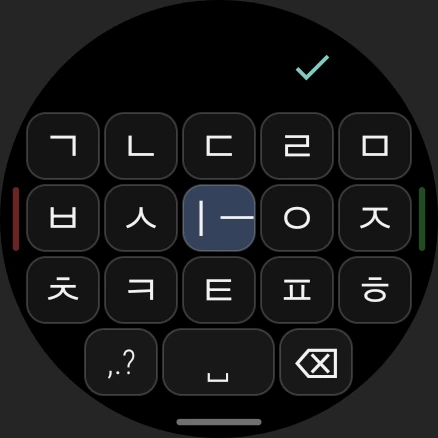
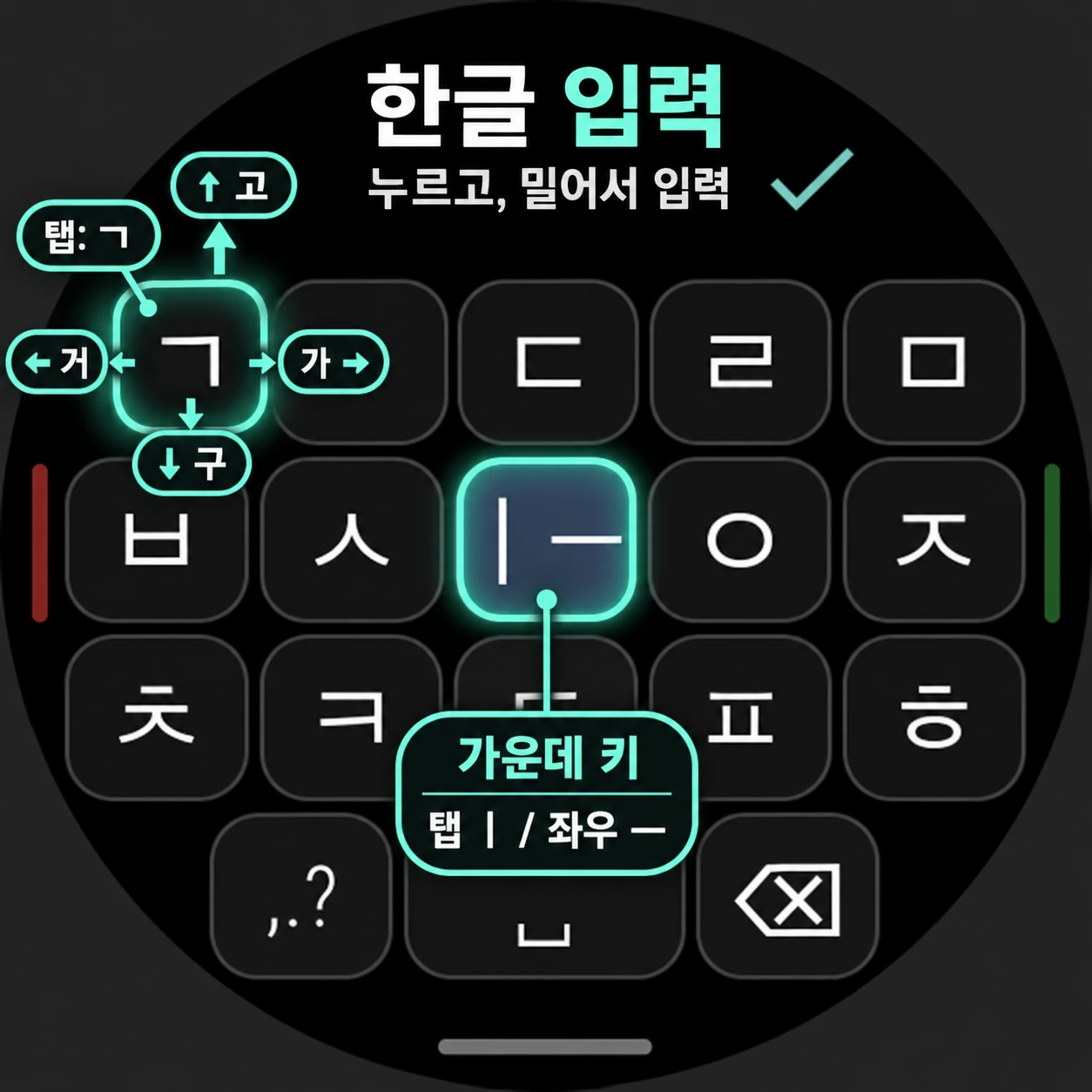
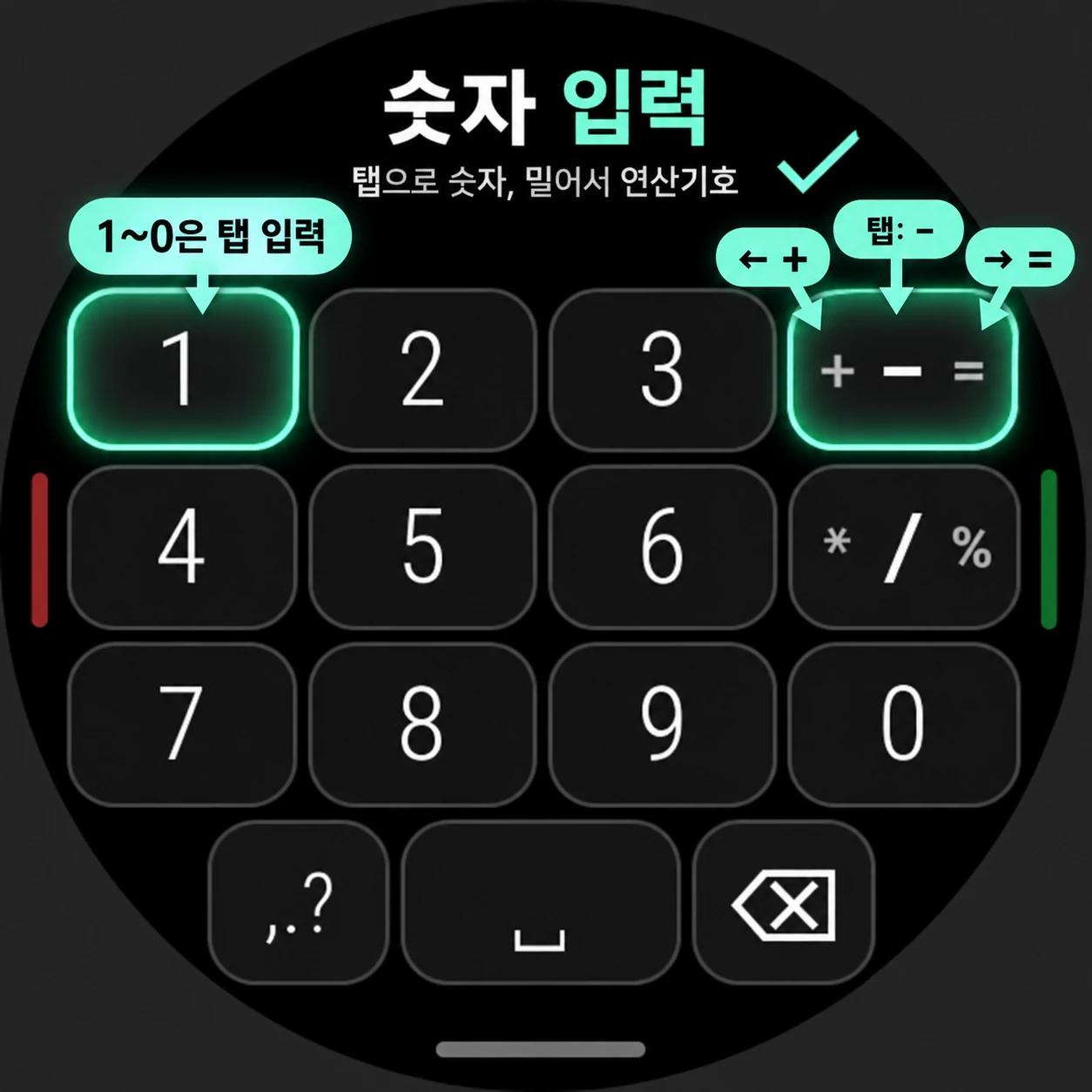
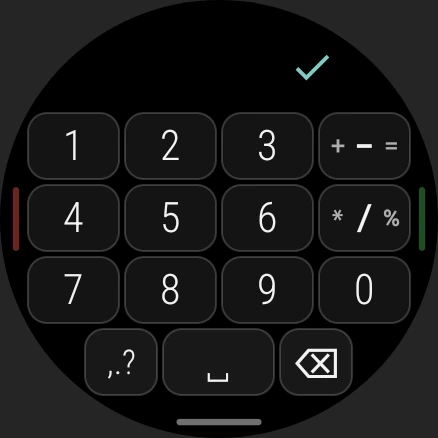
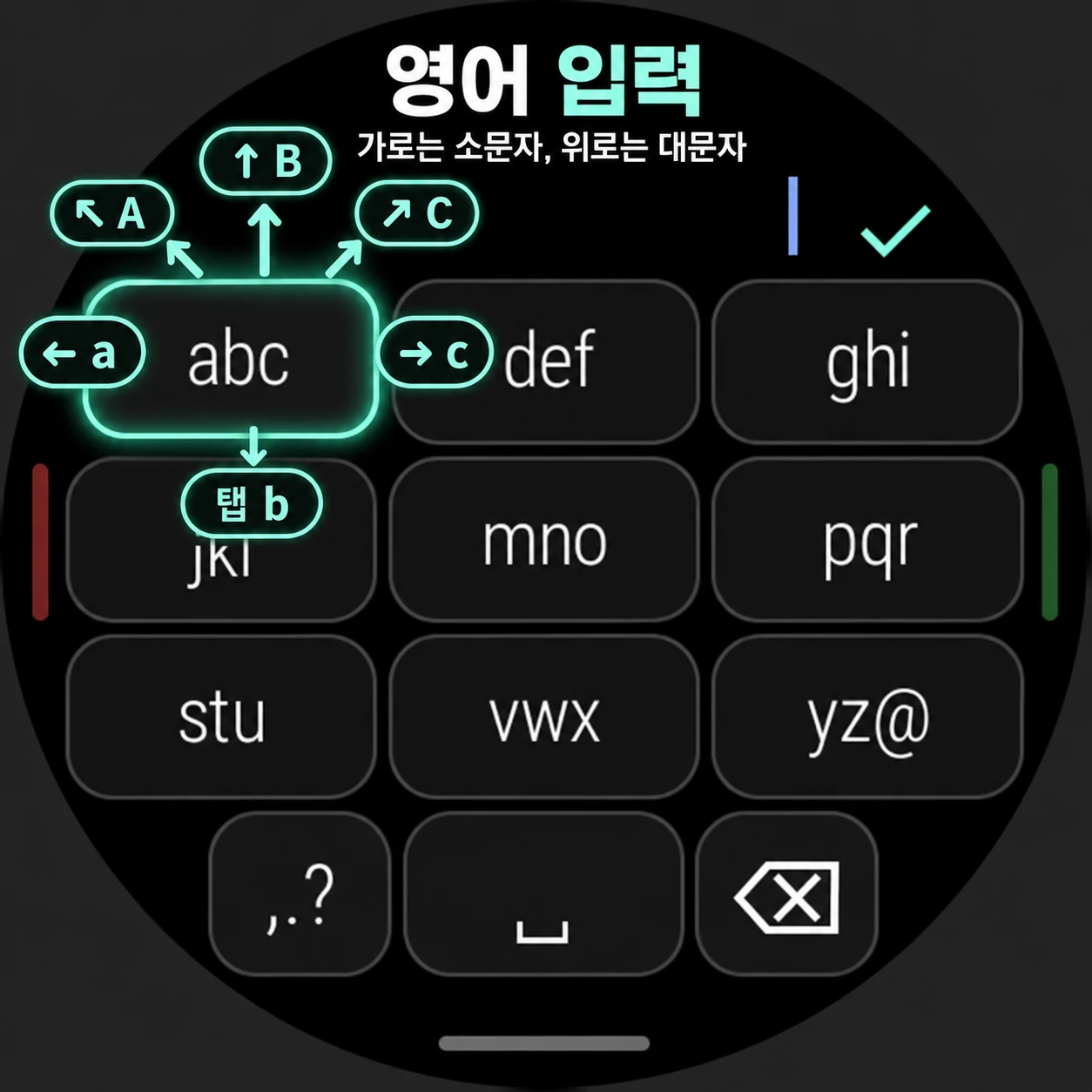
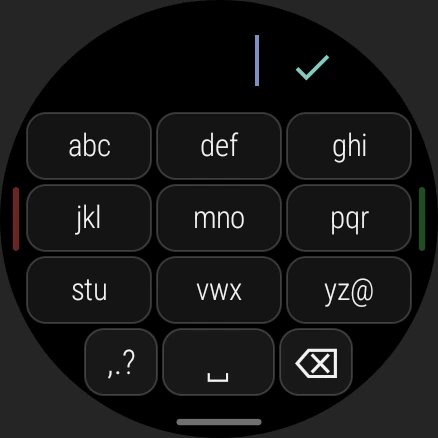
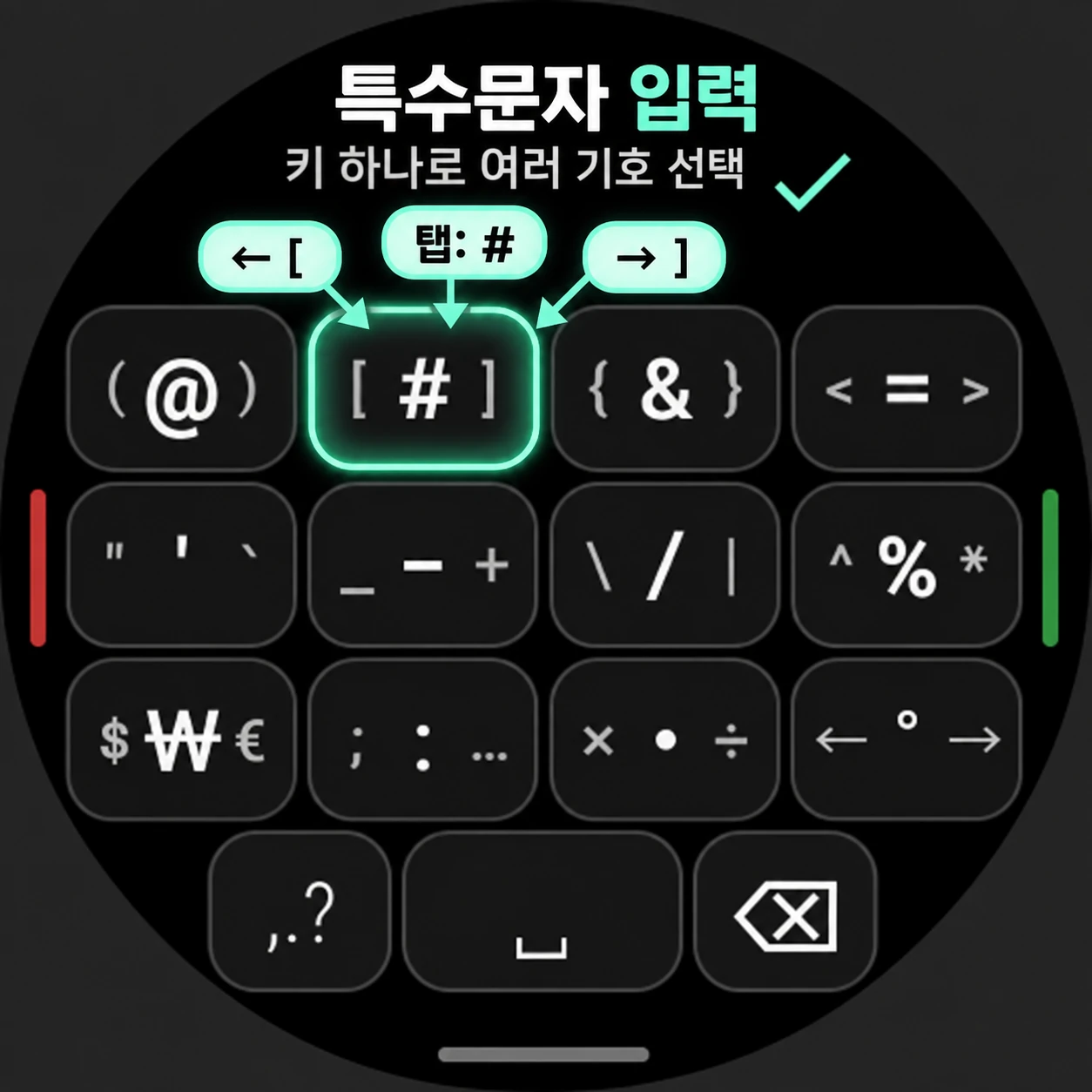
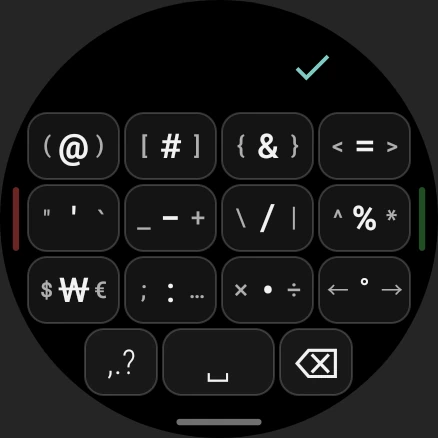
Find the keys and swipe directions for the character you want to type.
Alpha test manual v0.1 · September 10, 2026
Getting started
Install the test build on your watch using the developer’s instructions. Open Sseukgeul from the watch app list to enable and select it. Open a reply or search field and try swiping right on ㄱ to type 가. Keyboard selection and editing features can vary by host app.
Screen layout
Screen element
Purpose
Text display
Shows the text and cursor
Top check mark
Finish input or save a phrase while editing
15 character keys
14 consonants and one ㅣㅡ vowel key
Three bottom keys
Punctuation, space and backspace
Left, right and bottom edges
Go back, open saved phrases or choose a keyboard mode
Tap a consonant to enter it alone. To add a vowel, start on the consonant and swipe before lifting. The centre key marked ㅣㅡ is a single key. Tap it for ㅣ or swipe sideways for ㅡ.
After a vowel, tap a consonant to form the final sound of the syllable. Repeating an initial consonant can form a double consonant. Start each practice sequence in an empty field. Swipe right on space to commit the syllable without adding a space. Backspace can undo a single composition step. Report any differences in the alpha build along with the preceding syllable and the exact sequence.
Keep your finger down through both movements. For a reverse swipe, move out and double back before lifting. You do not need to return all the way to the starting point. For a corner swipe, move vertically first and then horizontally. Try ㅇ left then right for 여 and ㄱ up then right for 과.
Swipe up from the bottom bar and choose Vowels. You can enter a consonant in Hangul mode then switch and tap the vowel. The current syllable stays active. The compound vowel table assumes an initial consonant. Standalone vowels are entered separately. Use Back or the mode selector to return to Hangul.
Start on a key to operate it. Tap space to insert a space. Swiping right on space while composing commits the character without moving the cursor again. Swipe up on backspace to delete the word before the cursor. The punctuation key offers five symbols.
Space
Gesture
Function
Tap
Insert one space
Swipe left
Move the cursor left once
Swipe right while composing
Commit the current syllable
Swipe right after committing
Move the cursor right once
Swipe up or down
No action
Backspace
Gesture
Function
Tap
Undo one composition step or delete the character before the cursor
Start on an edge bar to switch screens. Switching between Hangul and Vowels preserves composition. Switching to Numbers, English or Symbols commits the syllable. The top check mark performs the host app’s completion action and can send a message. System Back keeps the text. A cancel swipe attempts to restore the previous text and cursor. If the host app cannot restore them, the keyboard may simply close. Test with a practice message.
Mode selector
Current keyboard
First item in mode selector
Hangul keyboard
Vowel
Vowel
Hangul
Numbers, English or Symbols
Hangul
Edge gestures
Starting point and direction
Function
Bottom bar → up
Choose keyboard mode
Bottom area → right
Open saved phrases
Right edge → left
Open saved phrases
Bottom area → left
Cancel input and close keyboard
Left edge → right
Cancel input and close keyboard
Finish or cancel
Gesture
During ordinary input
Top check mark
Keep text and perform the host app’s completion action
System Back
Keep the text
Sseukgeul cancel swipe
Attempt to restore the previous text and cursor then close
Tap a digit from 0 to 9. Each operator key has three positions. Swipe left for the left symbol, tap for the middle and swipe right for the right symbol. Punctuation, space and backspace also appear on the bottom row.
Read each key from left to right. Swipe left, tap or swipe right to select the matching letter. On abc, swipe up-left for A, up for B and up-right for C. The same pattern applies to other letters.
Each of the twelve keys holds three symbols. Use the left, tap and right gestures for the corresponding positions. Vertical swipes have no assigned character here. The arrows on symbol keys insert arrow characters. Use the space key for cursor movement.
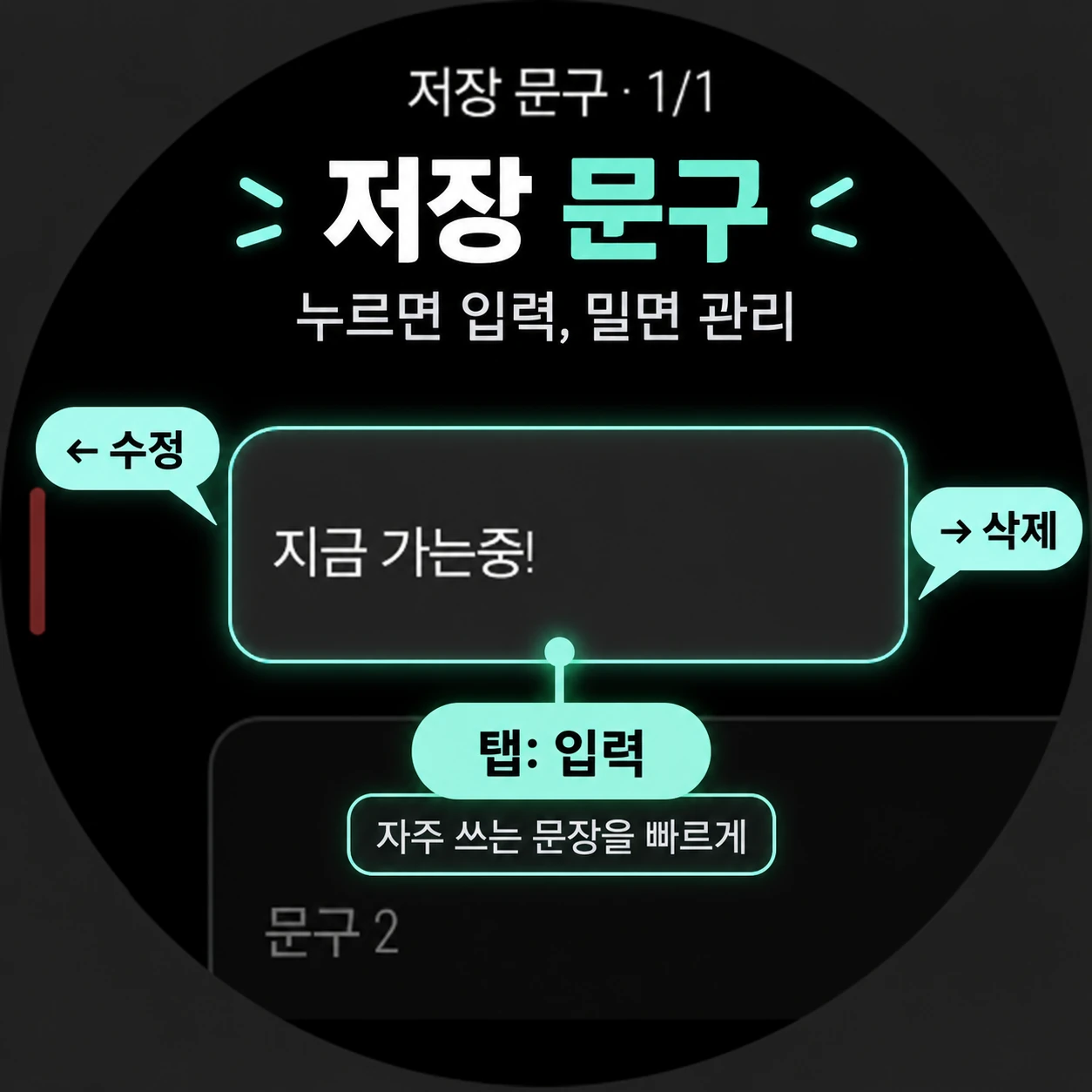
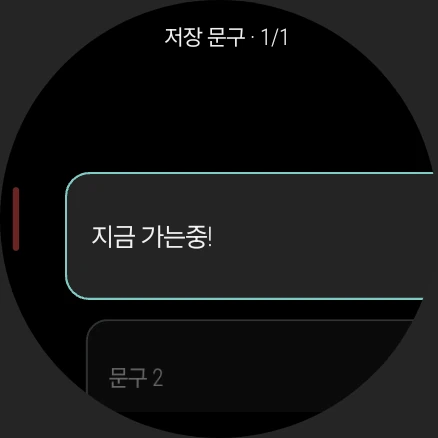
Swipe right from the bottom area or left from the right edge to open the list. Scroll vertically and tap a phrase to insert it into the current field. Sending is a separate action. Swipe right from the left edge to return to the keyboard.
Swipe left on an empty slot to create a phrase or on a saved phrase to edit it. Use the top check mark to save. Switching modes preserves your draft and cursor. System Back or a rightward swipe from the left edge discards unsaved changes. Swipe right on a saved phrase and confirm to delete it. Emoji can use more than one code point. Keep a separate copy of important text.
Open Sseukgeul from the watch app list. Adjust one setting at a time with the minus and plus buttons and try the same gesture again. Settings are saved when changed. Watch Premium is a one-time in-app purchase for the watch. Ask the developer about access in your alpha build before testing a locked feature.
Adjusting the settings
Item
Minus button
Plus button
Swipe sensitivity
Requires a longer movement
Recognises a shorter movement
Keyboard width
Narrower
Wider
Key height
Shorter
Taller
Vertical position
Move down
Move up
Finding a comfortable fit
Issue
Adjustment
Swiping produces only a consonant
Increase sensitivity or swipe farther
Tapping adds an unwanted vowel
Lower sensitivity
Finger slips off the outer keys
Reduce keyboard width slightly
Keys feel too small
Adjust width or key height
Keyboard is hard to reach
Adjust vertical position
Feature availability
Gesture type
Function
Included
Hangul, vowel and number keyboards
Included
Basic punctuation and number-pad operators
Included
Composition, cursor, deletion and keyboard settings
If the result differs from what you expected, note the starting text, key, swipe direction, expected result and actual output. Try again in an empty field and note how often it happens. If typing stops or text disappears, record your app version and contact the developer. Use sample text or cover private messages in screenshots.
Common issues
Situation
What to check
Only a consonant appears instead of 가, 거, 고 or 구
Start on the key and swipe far enough. Check sensitivity.
Trying to type 여 produces 어
Swipe left then reverse to the right before lifting.
Trying to type 과 produces 고 or 가
Swipe up first then turn right.
The new letter merges with the previous one
Swipe right on space to commit the syllable first.
Tapping abc produces b
Expected. Swipe left for a, tap for b or swipe right for c.
The minus key gives + or =
Tap for the centre symbol. Swipe for the outer symbols.
Tapping a phrase does not send it
Selecting a phrase inserts it in the field.
Tapping an empty phrase slot does nothing
Swipe left on an empty slot to start writing.
Swiping right does not delete a phrase immediately
Confirm deletion in the dialog.
English, symbols or phrases are locked
Check Premium or alpha test access with the developer.
Trying an edge gesture types a letter
Start on the edge bar outside the character keys.
The check mark opened an unexpected screen
Check the host app’s completion action and report the app name.
Use these tables to look up a key, a change of direction or an edge gesture while you practise. Undocumented directions have no confirmed behaviour in this guide.
Key gestures
Key
Tap
Left
Right
Up
Down
Consonant key
Consonant
+ ㅓ
+ ㅏ
+ ㅗ
+ ㅜ
Centre key
ㅣ
ㅡ
ㅡ
Undocumented
Undocumented
Punctuation
.
,
?
!
~
Space key
Space
Cursor left
Commit syllable or move right
None
None
Backspace
Delete one step
None
None
Delete previous word
None
Two-part gestures
Gesture
Resulting vowel
On ㄱ
Right then left / left then right
ㅑ / ㅕ
갸 / 겨
Up then down / down then up
ㅛ / ㅠ
교 / 규
Up then right / down then left
ㅘ / ㅝ
과 / 궈
Up then left / down then right
ㅚ / ㅟ
괴 / 귀
Screen and phrase gestures
Gesture
Result
Input: bottom bar up
Mode selector
Input: bottom rightward or right edge leftward
Phrase list
Input: bottom leftward or left edge rightward
Cancel and close. Restoration depends on the host app.
Use a practice field and clear it between composition examples. Test Premium items only if your build has access. Start with basic typing and record what felt easy, hard to reach or easy to trigger by mistake.
Test cases
Check
Action to try
Expected result
□
Enable and select the installed keyboard
Sseukgeul appears in a text field
□
Tap ㄱ then try left, right, up and down
ㄱ / 거 / 가 / 고 / 구
□
ㄱ then tap / swipe sideways on centre
기 / 그
□
On ㅇ swipe left then reverse right
여
□
On ㄱ swipe up then turn right
과
□
Type ㄱ then select ㅐ on Vowels
Composes 개
□
가 + ㄴ / 가 + ㅂ + ㅅ
간 / 값 (verify composition)
□
Tap ㄱ twice then swipe right on ㄱ
까 (verify composition)
□
Tap space / swipe right while composing
Space / commit without adding a space
□
Tap backspace / swipe up
Delete one step / previous word
□
Tap punctuation then try left, right, up and down
. / , / ? / ! / ~
□
Type digits and test left, tap and right on the − key
Digits and the corresponding operator
□
Test tap, left, right and the three upward directions on abc
b / a·c / A·B·C
□
Swipe left, tap and swipe right on the # key
[ / # / ]
□
Swipe left on empty slot, write, save and tap phrase
Phrase is saved and inserted without sending
□
Edit then go back / swipe right to delete
Discard unsaved changes / show delete confirmation
□
Adjust sensitivity, dimensions and position
Changes appear on the typing screen
□
Try finishing input and cancelling separately
Record each host app’s completion and restore behaviour
Include the test date, watch model, Wear OS and app versions, host app and input field, enabled features and any settings you changed. Describe the initial text, steps, expected and actual results, frequency and impact. Add a redacted screenshot if helpful.
Sample report
“I started on ㅇ and swiped left then back right. I expected 여 but got 어 twice in five attempts.” Include your watch model and build so the developer can repeat your steps.
This guide uses the original and annotated watch screenshots. Version 0.1 refers to the manual. For key positions use the original screens. For gestures use the tables.